
Create Photorealistic Visuals with Precision Typography
Imagen 4 is Google DeepMind's latest text-to-image generation model, announced at Google I/O on May 20, 2025. It is available through the Gemini API, Google AI Studio, Vertex AI, and directly within Google Workspace apps including Docs, Slides, and Vids. The model delivers significant improvements in text rendering, photorealistic detail, and prompt adherence compared to its predecessor, Imagen 3. All generated outputs carry invisible SynthID watermarks for content provenance.
Designed for creators who need high-fidelity images quickly, this model supports output resolutions up to 2K and produces images with remarkable clarity in fine details — from intricate fabrics and water droplets to animal fur. A fast variant generates images up to 10x faster than the previous generation, making it practical for high-volume creative workflows such as marketing campaigns, product mockups, and social media content production.
Technical Capabilities at a Glance
Key output specifications and supported controls for image generation.
Maximum Output Resolution
Up to 2K (Standard and Ultra variants)
Supported Aspect Ratios
1:1, 3:4, 4:3, 9:16, 16:9
Images Per Request
1 to 4 per prompt
Text & Typography Rendering
Significantly improved over Imagen 3, suitable for posters and comics
Prompt Language
English only
Content Provenance
SynthID invisible watermark on all outputs
Before You Generate: Imagen 4 Preflight Checks
Avoid common quality issues by verifying these model-specific settings before each generation.
Select the Right Variant
Choose between Fast (speed/volume), Standard (balanced quality), or Ultra (maximum prompt adherence and detail). Each variant produces different quality-speed tradeoffs.
Set Aspect Ratio Before Generating
Imagen 4 supports five aspect ratios (1:1, 3:4, 4:3, 9:16, 16:9). Choose before generation rather than cropping afterward — the model composes images specifically for the selected ratio.
Enable or Disable Prompt Rewriting
An LLM-based prompt enhancement feature is enabled by default. Disable it if you need exact prompt control, but note that turning it off may reduce output quality for short prompts.
Quote Text for Typography Accuracy
When your prompt includes text to render in the image (signage, titles, labels), enclose the exact text in quotation marks within your prompt for best rendering accuracy.
Check Person Generation Settings
The personGeneration parameter controls whether adults, children, or no people appear. Defaults vary by region — 'allow_all' is restricted in EU, UK, CH, and MENA locations.
Imagen 4 in Action
| Prompt | Result |
|---|---|
|
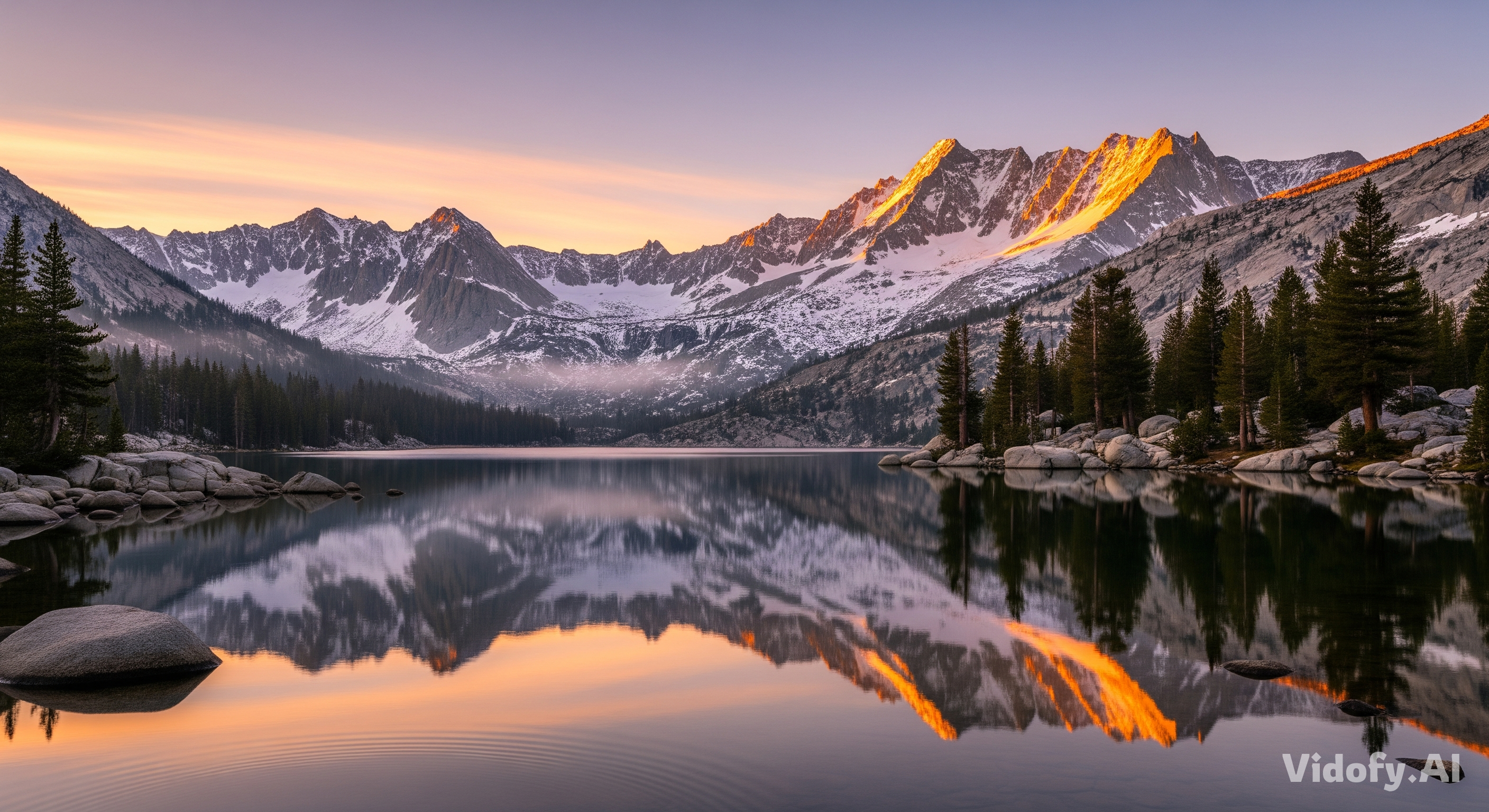
"A breathtaking landscape of a mountain range at dawn, with a crystal-clear lake in the foreground reflecting the snow-capped peaks. Golden hour lighting, ultra-detailed, 16:9 aspect ratio." |
|
|
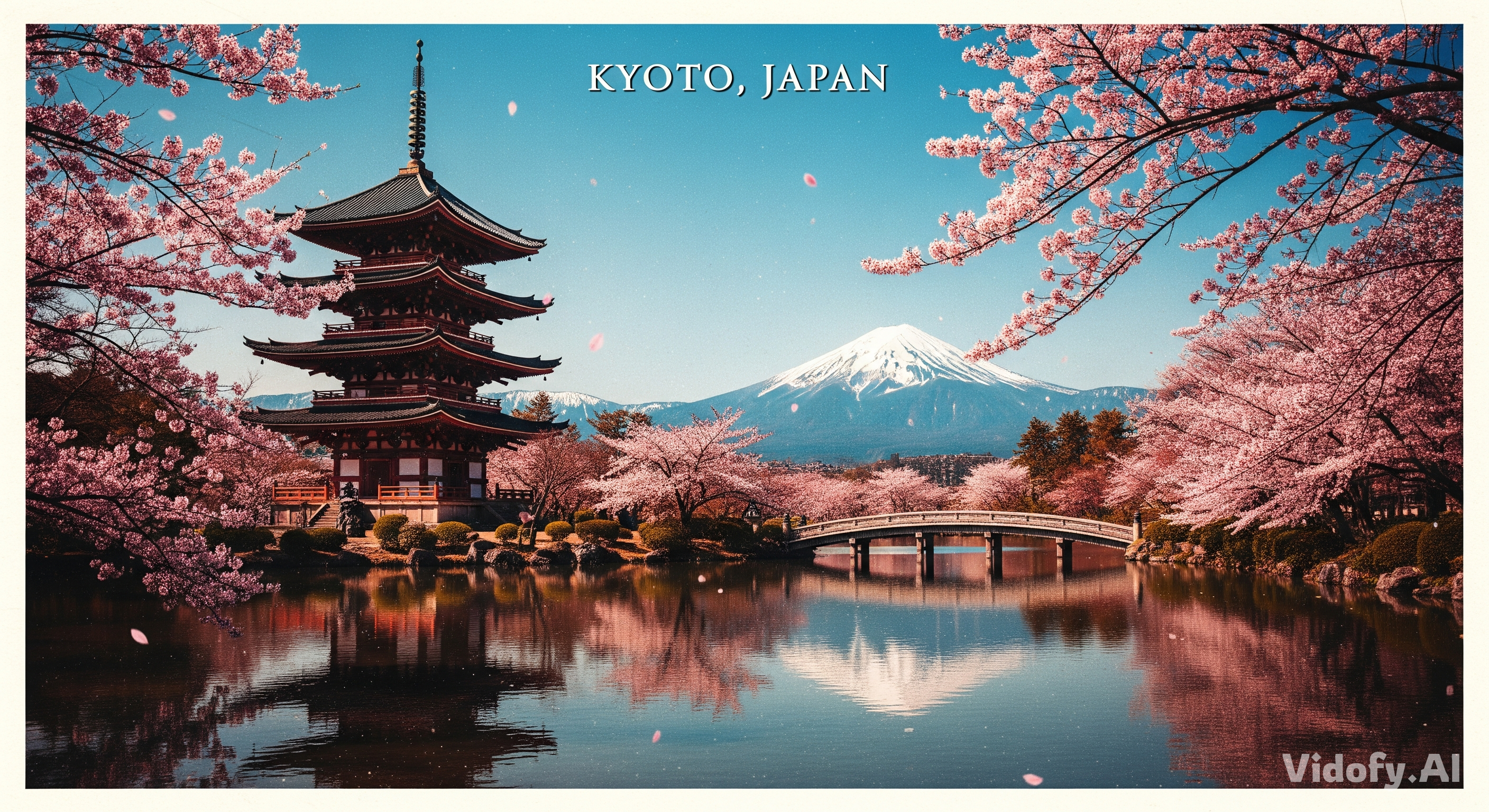
"A vintage travel postcard for Kyoto: iconic pagoda under cherry blossoms, snow-capped mountains in distance, clear blue sky, vibrant colors. Text at top reads 'KYOTO, JAPAN' in elegant serif font." |
|
|
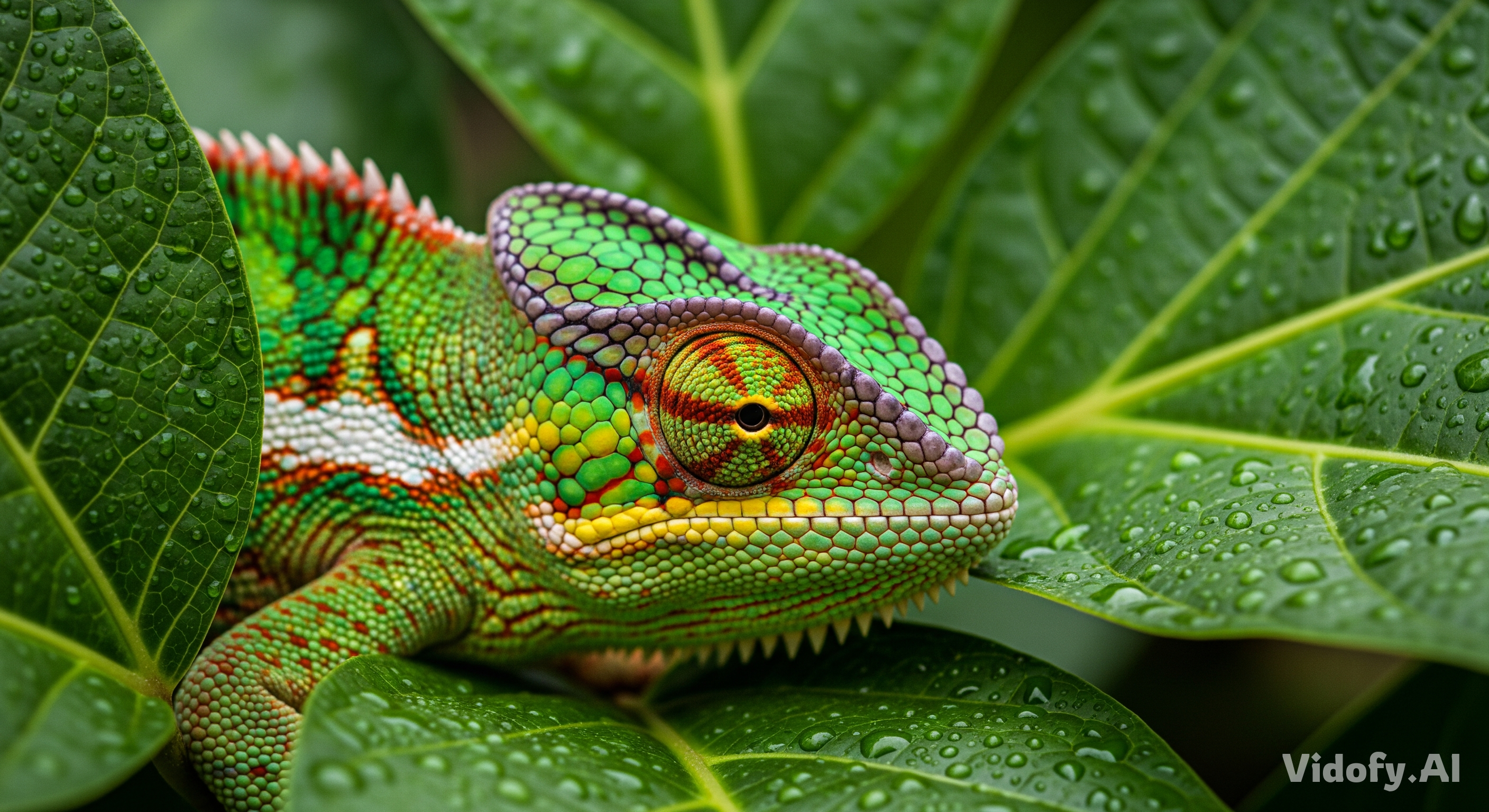
"A close-up macro photograph of a chameleon blending into vibrant textured leaves, its eye swivelled to look directly at the camera. Abstract dappled light filters through the leaves. Award-winning wildlife photography style." |
|
|
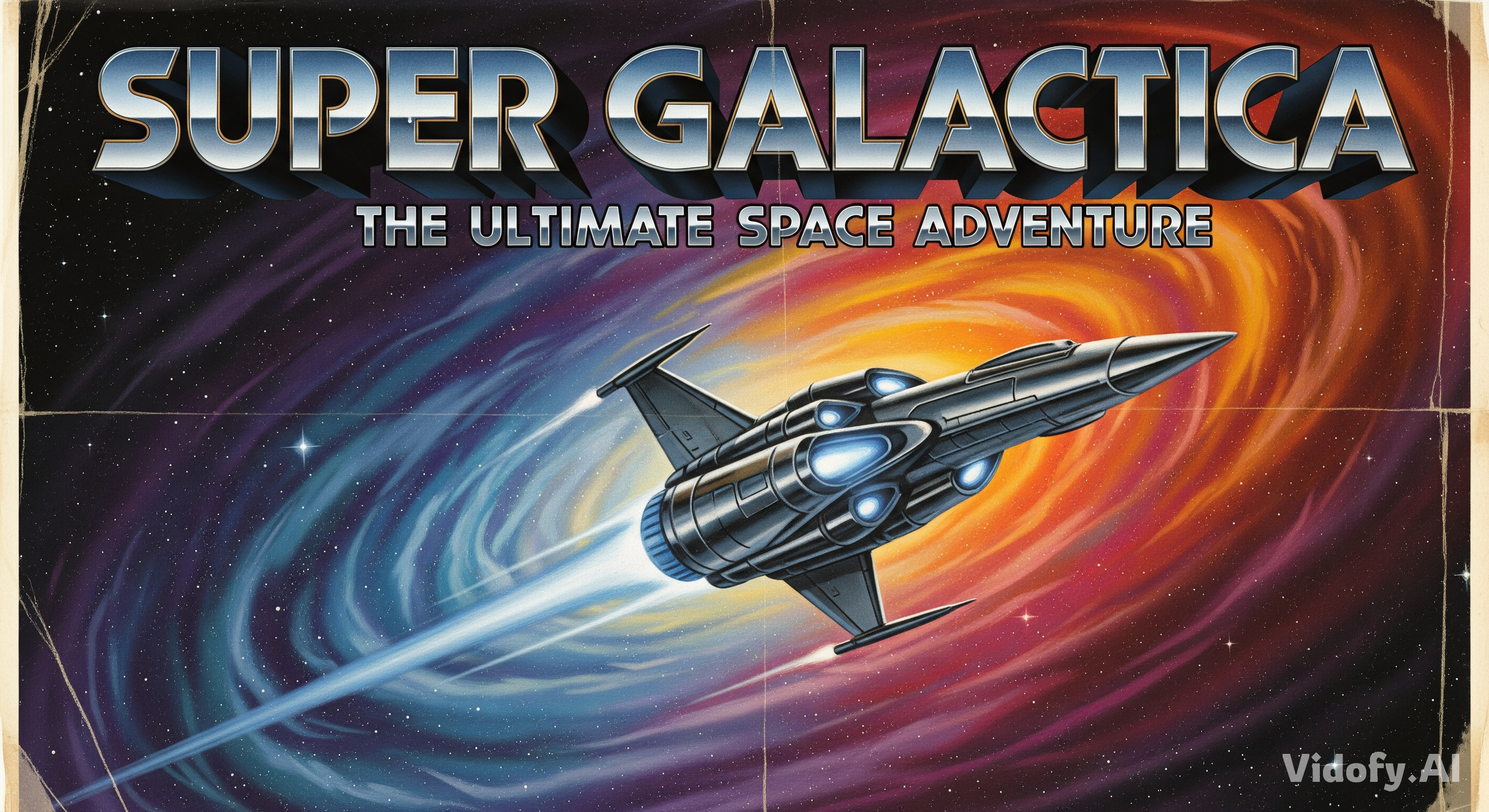
"A retro science fiction movie poster with airbrushed art style. A spaceship flying through a vibrant nebula. Title reads 'SUPER GALACTICA' in bold metallic chrome font with drop shadow. Vintage weathered border." |
|
|
"A ceramic mug with latte art shaped like a leaf, on a light oak table near a window with dappled sunlight. Pastel palette, airy minimalism, warm tones. Top-down angle, shallow depth of field, 4:3 aspect ratio." |

|
|
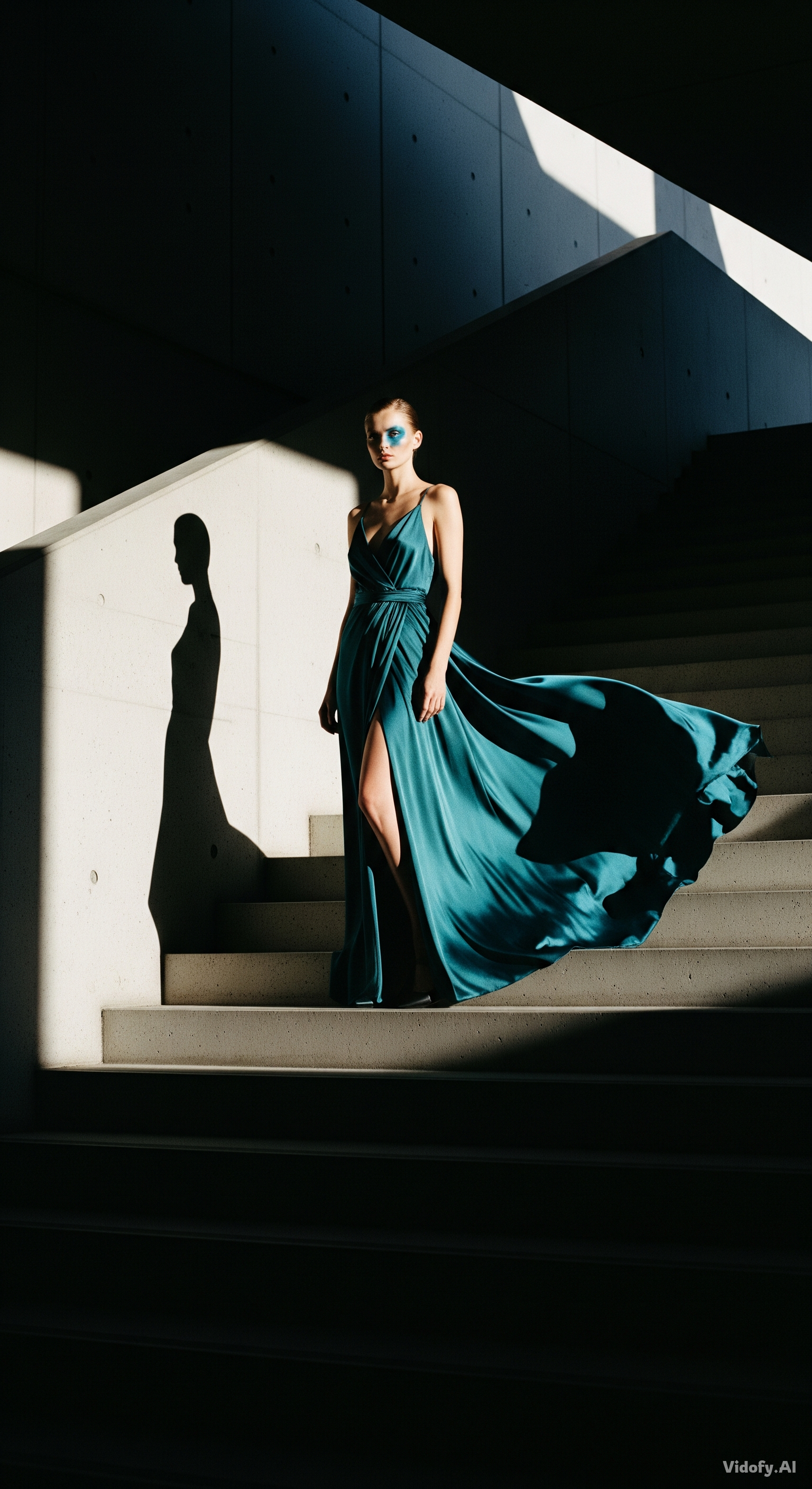
"An editorial fashion photograph: a model in a flowing silk dress standing on a minimalist staircase. Dramatic directional lighting, film noir mood. 35mm lens, high contrast, 9:16 portrait orientation." |
|
Choose Your Workflow: Imagen 4 or Flux Kontext Dev
Both models generate high-quality images but serve different creative needs. Imagen 4 is a cloud-based text-to-image model optimized for photorealism and typography. Flux Kontext Dev is an open-weight image editing model focused on in-context modifications and character consistency. Here's how they compare on key specifications.
| Feature/Spec |
Imagen 4
Recommended
|
Flux Kontext Dev |
|---|---|---|
| Developer | Google DeepMind | Black Forest Labs |
| Model Type | Text-to-image generation | In-context image generation and editing (text + image input) |
| Parameters | Not verified in official sources (latest check) | 12 billion parameter rectified flow transformer |
| Maximum Output Resolution | Up to 2K | Up to 1568×672 (various aspect-ratio-dependent resolutions around 1 megapixel total) |
| Aspect Ratios | 1:1, 3:4, 4:3, 9:16, 16:9 | 1:1, 16:9, 21:9, 3:2, 2:3, 4:5, 5:4, 3:4, 4:3, 9:16, 9:21, auto, match_input |
| Open Weights | No (cloud API only) | Yes (open weights, FLUX.1 [dev] Non-Commercial License) |
| Image Editing (image-to-image) | Not verified in official sources (latest check) | Yes — instruction-based editing with text + image input |
| Commercial Use of Outputs | Subject to Google API Terms of Service | Outputs usable for commercial purposes per license; model weights are non-commercial without separate license |
| Accessibility | Available on Vidofy.ai | Flux Kontext Dev also available on Vidofy.ai |
Practical Tradeoffs for Your Creative Workflow
Generation vs. Editing: Different Starting Points
Imagen 4 excels as a pure text-to-image generator — you describe a scene and receive a fully composed, high-resolution image with strong typography. Flux Kontext Dev, in contrast, is built around editing existing images: you supply a reference image alongside text instructions and the model makes targeted modifications while preserving the rest. If your workflow starts from a blank canvas and a text brief, Imagen 4 is the faster path. If you already have visual assets that need iterative refinement — changing backgrounds, swapping objects, or maintaining character consistency across scenes — Flux Kontext Dev provides specialized control that a pure text-to-image model cannot match.
Cloud Convenience vs. Local Control
Imagen 4 operates entirely through Google's cloud infrastructure (Gemini API, Vertex AI, Google AI Studio), offering managed scaling and tight integration with Google Workspace. Flux Kontext Dev provides open weights that can run on consumer-grade hardware locally, giving teams full data control, no API rate limits, and the ability to build custom pipelines using ComfyUI or Diffusers. For teams with privacy requirements or custom integration needs, Flux Kontext Dev's self-hosted option is a significant advantage. For teams prioritizing speed-to-production with minimal infrastructure, Imagen 4's managed ecosystem is more practical.
When to Choose Imagen 4 vs Flux Kontext Dev
Use this quick guidance to pick the best option for your workflow.
Generate Your First Image in Four Steps
Go from idea to high-quality output in under a minute with these four steps.
Step 1: Select Imagen 4
Open Vidofy.ai and choose Imagen 4 from the available models. Pick the variant that matches your need: Fast for quick iterations or Standard/Ultra for maximum detail.
Step 2: Write Your Prompt
Describe the image you want in natural language. Include subject, style, composition, and any text you need rendered. Use quotation marks around any in-image text for best results.
Step 3: Configure Output Settings
Select your preferred aspect ratio and number of image variations (up to 4). These settings shape how the model composes your scene.
Step 4: Generate and Download
Click generate and review your results. Download the output in high resolution, regenerate with a modified prompt, or create additional variations.
Frequently Asked Questions
What resolution does Imagen 4 output?
The Standard and Ultra variants support output sizes of 1K and 2K, with 1K as the default. The Fast variant outputs at its optimized resolution. You can set the imageSize parameter to '2K' for higher-resolution outputs suitable for print and large-format use.
Can I use images generated by Imagen 4 commercially?
Generated images are subject to Google's API Terms of Service and applicable usage policies. Google does not claim ownership of the outputs. All generated images include an invisible SynthID watermark for content provenance. For specific commercial use cases, review the current terms on Google's official documentation.
How does Imagen 4 handle text and typography in images?
Typography rendering is one of the most significant improvements over previous versions. The model can produce legible text on posters, signs, comic panels, and branded materials. For best results, enclose the exact text you want rendered within quotation marks in your prompt and keep text strings concise.
What is the difference between Imagen 4 Fast, Standard, and Ultra?
Fast is optimized for speed and high-volume tasks with generation times around a few seconds per image. Standard is the flagship variant for balanced quality across diverse generation tasks. Ultra delivers the highest prompt adherence and detail for demanding creative work. Each variant is separately selectable through the API.
Does Imagen 4 support image editing or image-to-image generation?
Imagen 4 is primarily a text-to-image generation model accessed through the Gemini API and Vertex AI. Official documentation focuses on text-prompt-based generation. For instruction-based image editing workflows that modify existing images, consider models specifically designed for that task, such as Flux Kontext Dev, which is also available on Vidofy.ai.
Can I control the safety and content filtering settings?
Yes. The API exposes a safetySetting parameter with adjustable thresholds, and a personGeneration parameter to control whether images of people (adults, children, or none) are generated. Note that some settings like 'allow_all' for person generation are restricted in certain regions including the EU and UK. Check official Vertex AI documentation for the latest regional restrictions.